

“Top 10 Excel Formulas You Never Knew You Needed: Save Time and Wow Your Boss!”
Here is the list of the top 10 basic formulas and functions in Excel.
- SUM
- COUNT
- COUNTA
- COUNTBLANK
- AVERAGE
- MIN Excel
- MAX Excel
- LEN Excel
- TRIM Excel
- IF Excel
Now, let us discuss each of them one by one –
#1 SUM in Excel
This basic Excel formula is used to get the sum of the value in one or more cells or ranges.
SYNTAX: SUM (range)
Example
=SUM(A1:A5)
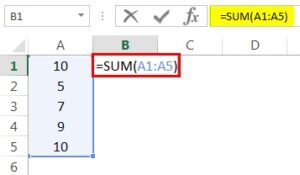
Result = 41
#2 COUNT Excel Function
This basic Excel function counts the numeric value in one or more cells or ranges.
SYNTAX: COUNT (range)
Example
=COUNT(A1:A5)
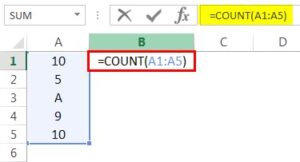
Result = 4 (This will exclude cell A3 since this formula calculates the only numeric value. Please see the image below).
#3 COUNTA in Excel
This formula counts the value in one or more cells (This will measure the cells irrespective of the number or text value).
SYNTAX: COUNTA (range)
Example
=COUNTA(A1:A5)
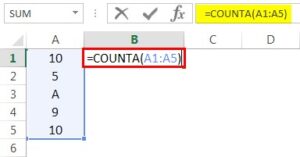
Result = 5 (This will Include Cell A3 since this formula calculates both text and numeric value. See Image below).
#4 COUNTBLANK in Excel
This Excel basic function counts the blank value in the range. (Note: We will not consider only space in a cell a blank cell).
SYNTAX: COUNTBLANK (range)
Example
=COUNTBLANK(A1:A5)
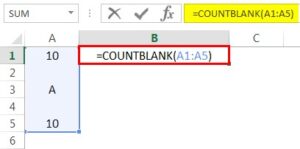
Result = 2 (This will calculate the number of blank cells in the range.
#5 AVERAGE in Excel
This basic formula in Excel is used to get the value average in one or more cells or ranges.
SYNTAX: AVERAGE (number1,…..)
Example
=AVERAGE(A1:A5)
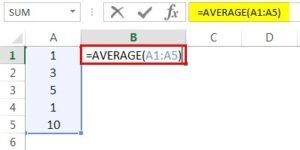
Result = 4 (See image below)
#6 MIN Formula in Excel
This Excel basic function is used to get the minimum value in cells or ranges.
SYNTAX: MIN (number1,…..)
Example
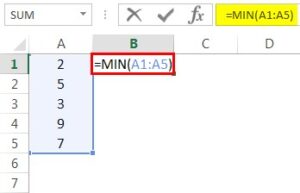
=MIN(A1:A5). Result = 2 (See Image below)
#7 MAX Formula in Excel
This basic Excel function gets the maximum value in cells or ranges.
SYNTAX: MAX(number1,…..)
Example
=MAX(A1:A5)
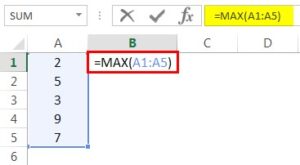
Result = 9
#8 LEN in Excel
This basic function of Excel calculates the number of characters in a cell or text.
SYNTAX: LEN(Text)
Example
=LEN(A1)
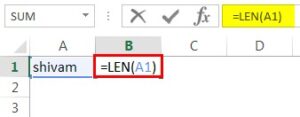
Cell A1 value is Shivam, which has a 6-character length. So, the result would be 6
#9 TRIM in Excel
This basic Excel function removes unnecessary space in a cell or text.
SYNTAX: TRIM(TEXT)
Example
=TRIM(A1)
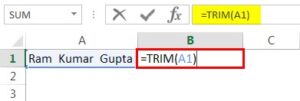
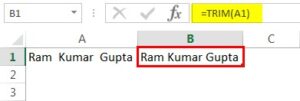
Cell A1 has two spaces between the first, middle, and last names. This function will remove extra space to give the result. (See image below).
#10 IF in Excel
IF function can perform a logical test in Excel.
The IF function can perform logical test in Excel, which returns values based on a true or false condition.
It is typed =IF and has 3 parts:
=IF(logical_test, [value_if_true], [value_if_false])
Example-
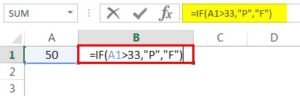
=IF(A1>33,”P”,”F”). A value in cell A1 is 50, and a logical test is if the value is greater than 33. Then the result would be P. Else, the result would be F.
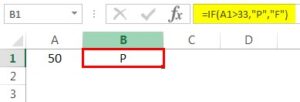
Since the value 50 is greater than 33, the result would be P. (See image below).
Things to Remember
- A formula should always start with an equal (=) sign. Else, it will show an error.
- If we enter any text value, we should provide the text value within an inverted comma (“”).
- Space (_) is always counted as a single character. So, if you are using blank cells, remember that if a cell has only space, it will not be counted as a blank cell.
